
View Progress
On This Page
What is Progress?
Progress is one of Brightspace's data tools for monitoring your engagement with course materials and assessments. It consolidates information from across an individual course site, including content viewed, assignments submitted, discussion participation, and login activity, into a single view.
How to Access Progress
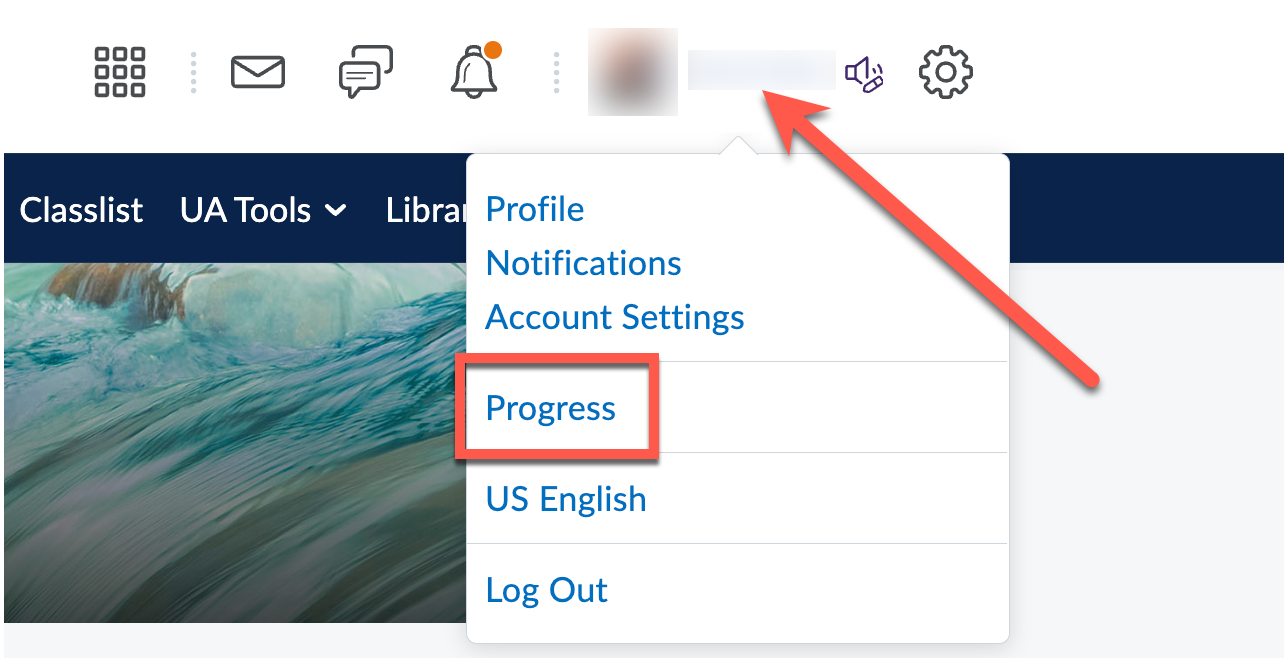
To access your Progress data in a specific course, open the course site. Then, click on your name in the minibar and select Progress in the dropdown menu.
Viewing Your Progress in a Course
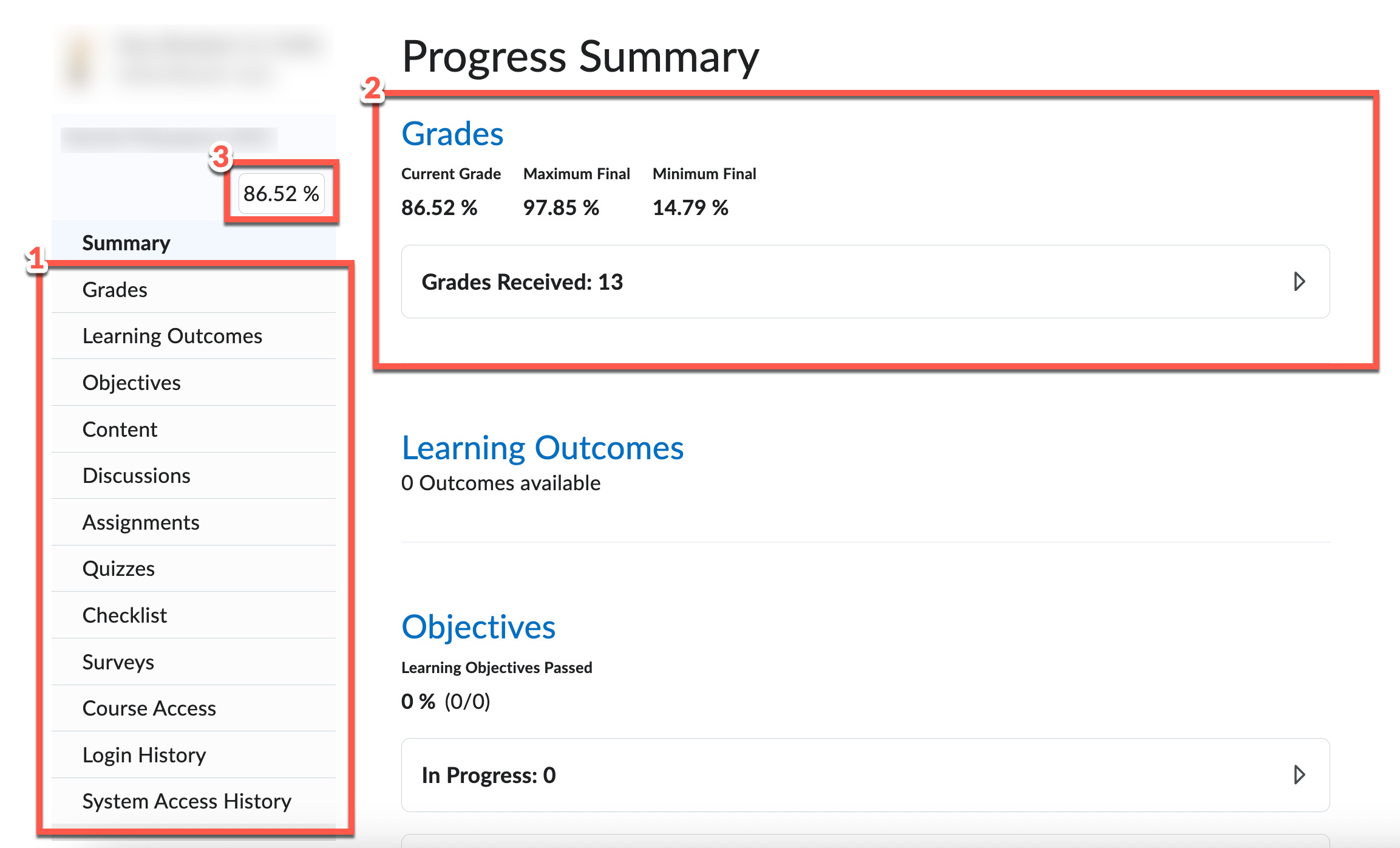
- Progress Indicators
- Progress Summary: Click on the expansion bar for more information on any of the Progress indicators (ex. in this case, "Grades Received:")
- Your Final Calculated Grade (if released by your instructor)
About Progress Indicators
In addition to the detailed views of the progress indicators above, progress for a specific student shows three different indicators of course and system access:
- Grades Performance: Current final grade for the student, as well as a visualization of the scores of the last 15 items. Hovering over each bar provides additional details for the grades.
- Objectives Completion: The Objectives tool is not broadly utilized at the U of A.
- Content Visited: How many content topics each student has accessed by navigating within the Content tool. If users navigate to an activity outside of the Content tool (for instance, by using the navbar) it does not count as a visit.
- Content Completion: How many required content topics each student has completed
- Discussion Participation: User statistics for reading, posting, and responding to discussions.
- Assignments Performance: Current average on all submission folders as well as a visualization of the scores of the last 15 items. Hover over each bar for additional details about the folders.
- Quiz Performance: Current average on all quizzes as well as a visualization of the scores of the last 15 items. Hovering over each bar provides additional details for the quiz.
- Checklist Completion: How the learner is progressing through the assigned course checklists. Highlighted items indicate items that are due within the next 7 days.
- Survey Completion: Shows students' progression through the assigned surveys in the course.
- Course Access: Whether the student has logged into this course in the past 30 days; shows "absent periods" (days without course activity)
- Login History: When the student logged into Brightspace overall, not this specific course
- System Access: Number of accesses to Brightspace for the last 30 days.
Note
Content only counts toward a student's progress if the following are true:
- The content is marked as Required (not marked Optional)
- The student appears in the Classlist
- The student is not exempt from the activity
Interpreting Your Progress Data
Class Progress is a valuable tool for identifying disengagement, including lack of course access and missing submissions. However, due to variation in browser configurations and how students access course material, the accuracy of Class Progress data can be affected by the following factors:
- Content is opened in a separate browser tab
- Content is downloaded and viewed locally rather than in the browser
- Material or an activity is accessed through an External Learning Tool
- An ad-blocker is enabled
- An internet connection is lost while content is open
- The course is accessed through the Brightspace Pulse mobile app
Because of these limitations, time-spent, access, and content completion data is best used as a diagnostic starting point for a conversation with a student. It is not recommended as a method of assessing student effort or performance.