
New Content Experience
On This Page
New Content Experience Video (Students)
New Content Experience Student Testimonials
New Content Experience Overview
Locate, Access & Navigate Course Content
New Content Experience Video (Students)
Note
To skip to a desired chapter in the video, select the up arrow at the bottom center of the video & choose the desired content. Adjust the speed by selecting the gear icon and choosing playback speed.
New Content Experience Student Testimonials
New Content Experience Overview
Important
- During the SUM26 term, instructors have the option of enabling the New Content Experience. If your instructor has enabled it, your Brightspace experience will use New Content Experience.
- During the FA26 term and beyond, all Brightspace course sites at the University of Arizona will utilize the New Content Experience.
The New Content Experience has a different look to the Classic Content experience. You'll be able to tell your is using it by looking at the Table of Contents:
- Modules have colored bars next to the left of their names.
- Modules display how many items you have completed.
- Modules have collapse/expand capability; select a module to open it and discover what's within.
- Navigation arrows are now at the top right of the page.
Note
If you're not sure if your course is using New Content Experience, ask your instructor!
Locate, Access & Navigate Course Content
Step 1
From the NavBar, select Content.
Step 2
Use the Table of Contents on the left to select a module or submodule.
Step 3 (optional)
Use the search bar, located at the top left, to insert a title or description of a module or submodule, select Enter or the Magnifying Glass icon and then choose the desired item from the list.
Note
The search bar looks only at titles in module/submodule descriptions; you may need to refine your search to find the desired item.
Step 4
Once selected, the content displays to the right.
Step 5 (optional)
Use the directional left and right arrows, located at the top right, to move to the previous or next content item.
Step 6 (optional)
Select the Full Screen icon (when available, located at the top right) to have content display fullscreen; the icon appears as four arrows pointing diagonally.
Navigate Course Content
Step 1
Use the search bar to insert a title or description of a module or submodule, select Enter or the Magnifying Glass icon and then choose the desired item from the list.
Note
The search bar looks only at titles and in module/submodule descriptions; you may need to refine your search to find the desired item.
Step 2
Modules appear in the Table of Contents; collapse or expand them by selecting the desired module. Any content within that module will appear under it.
Note
When navigating to Content, Brightspace opens the first module in Content and it is expanded. This is expected behavior and you can navigate to the desired area of Content.
Step 3
Submodules appear under a module; instructors may use submodules to help organize multiple related items. Not every course uses submodules.
Step 4
Content topics (i.e., items) appear within their module or submodule; select one to open it.
Step 5
Due Date, if present, appears under the module, submodule or content topic.
Step 6
Availability: if your instructor has put a start date on a module, submodule or content topic, the item will display Not Available Yet.
Download Modules, Submodules or Content Materials
Step 1
Select the desired module, submodule or content topic.
Step 2
Above the item, to the right, find and select the Download icon (a cloud with an arrow pointing down).
Note
PowerPoint files (.ppt & .pptx) are displayed in a module or submodule as an inline PDF. This is expected behavior and is what allows you to review the slide deck without download. To download slide decks:
-
To download a PPT file, use Step 2 above.
- To download a PDF copy of the slide deck, hover your cursor over the inline PDF until the Control Panel appears at the bottom of the file & select the Download icon here; on the next screen, choose the Download icon another time and your file downloads to your device's designed download folder.
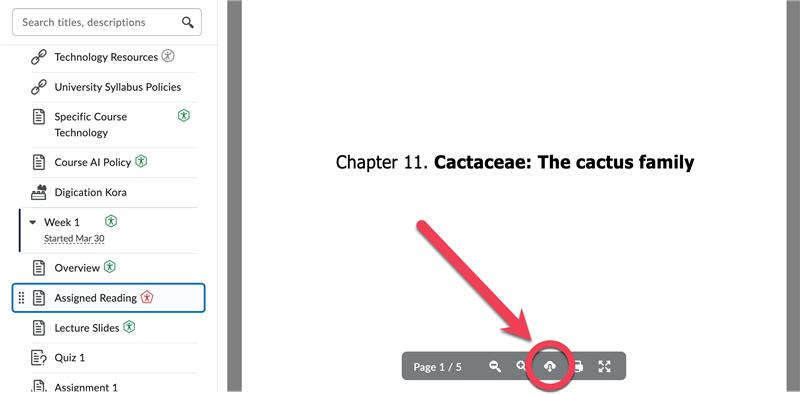
Step 3
The content automatically downloads to your device's designated destination.
Step 4
If downloading a module or submodule, Brightspace prepares a folder with all items within that module or submodule.
Submitting Work via Content
Step 1
From Content, locate the activity in the module or submodule & select it.
Step 2
Locate My Work at the bottom of the page. Depending
Step 3
Depending on the activity type, the next steps are:
Assignment
- Drag & drop your file(s) to the outlined area or select Add a File to attach your files (or Record Audio or Record Video for those options).
- Enter any comments in the HTML box, if desired.
- Select Submit.
Note
For further directions, please see Submit an Assignment (opens in a new tab).
Discussion
- Select Open Discussion.
- Complete the discussion as you normally would;
Note
For further directions, please see Participate in Discussions (opens in a new tab).
Quizzes
- Locate the corresponding attempt number for the quiz; select Start Quiz.
Note
For further directions, please Take and Submit a Quiz (starting at Step 5) (opens in a new tab).
View Your Work via Content
Note
The New Content Experience allows students to see their submitted work directly from Content.
Step 1
From Content, locate the activity in the module or submodule & select it.
Step 2
Locate My Work at the bottom of the page.
Step 3
Any work you have submitted for the activity appears here. You can see instructor feedback, your grade and the file(s) submitted.
Important
Some activities do not display submitted work. These are external learning tools (e.g., FeedbackFruits or Gradescope). To see work submitted for these activities, launch the activity to open the tool itself and view your work there.
Tips and Troubleshooting
- Hover your cursor over the left side of the Table of Contents so that you skip the date fields as you scroll to help avoid the date pop-ups on content modules, submodules or topics.
Support & Feedback
If you need assistance with NCE or any other supported instructional Technology, please reach out to the InTech Team at intech@arizona.edu. To suggest changes, request a process be added or report an error, please submit InTech Help Pages Feedback (opens in a new tab).