Honorlock: Use of Side-Angle (External) Webcam
On this page
In this course, you are required to use a side-angle (external) webcam during exams. This setup is commonly, though not exclusively, used in courses where exams require students to show their work or use physical materials. The side-angle camera allows for a wider view of the testing environment and surrounding workspace during the exam.
Note
Honorlock is not compatible with Walmart Branded (ONN), Amcrest, and Nexigo Cameras.
Required Items
- Your computer must meet system requirements (open in new tab)
- You must follow all standard rules and expectations (opens in a new tab)
- USB External Webcam
Choosing and External Webcam
When purchasing an external webcam, look for the following features:
- USB connection
- Compatible with your device (Windows, macOS, ChromeOS)
- Supports standard webcam functionality (plug-and-play)
Recommended Items
- USB extension cable
- Tripod or gooseneck mount for stability
Webcam Set Up
Taking a few minutes to properly set up your external webcam can help ensure a smooth testing experience and avoid delays during check-in.
Step 1
Connect Your External Webcam
- Plug your external webcam via your device's USB port
- If needed, use a USB extension cable to ensure it can be positioned in the correct position
Step 2
Set up your testing space
- Choose as a well lit space
- Clear your desk from unnecessary or unauthorized materials
Step 3
Camera Placement: Your camera must provide a side-angle view.
- Sit in your normal testing position
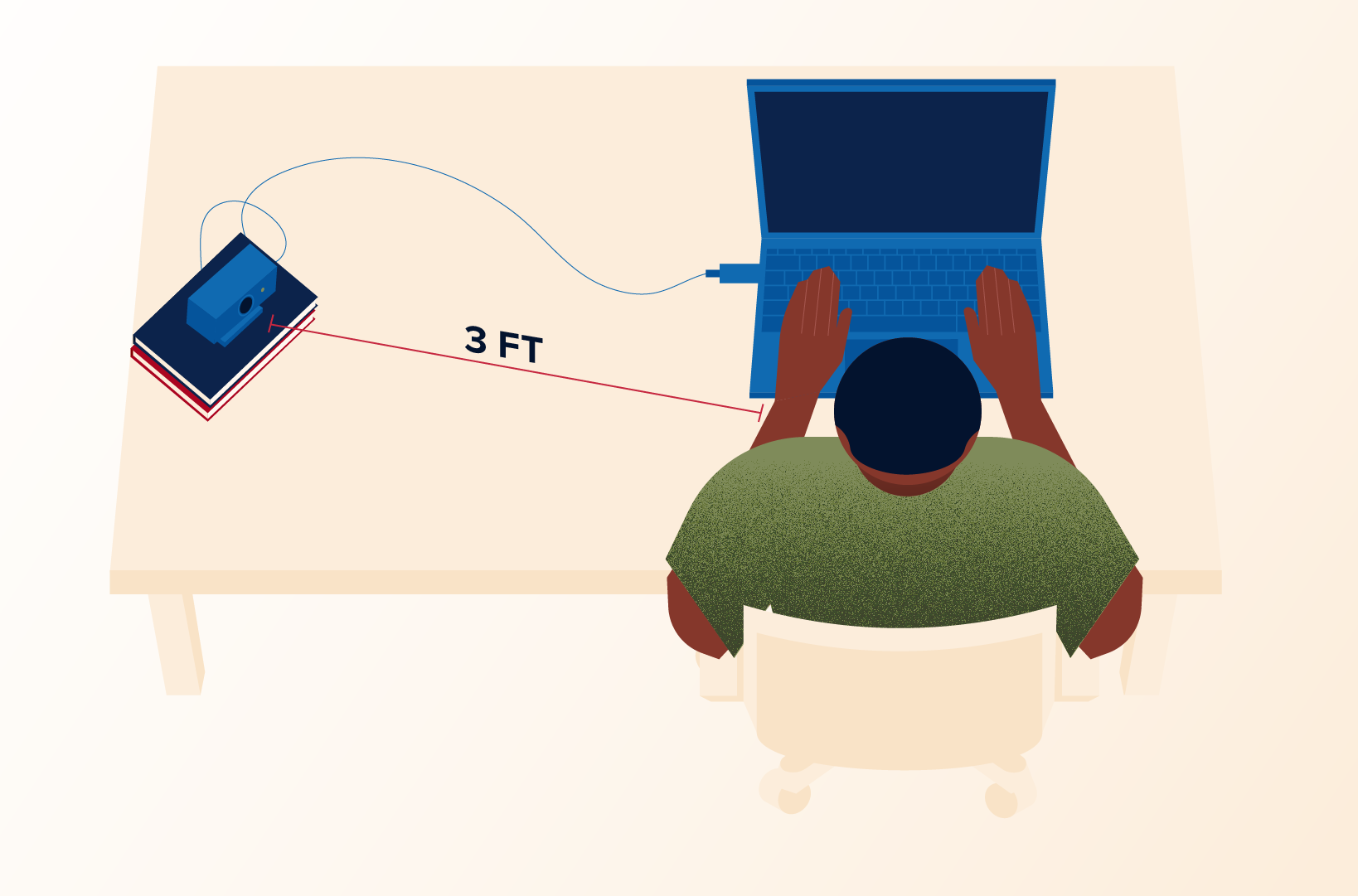
Option 1: Distance Method
- Measure 3 to 5 feet away from where you are sitting (on the left or right side)
- Place your camera at the end of that measurement
Option 2: Arm's Length Method
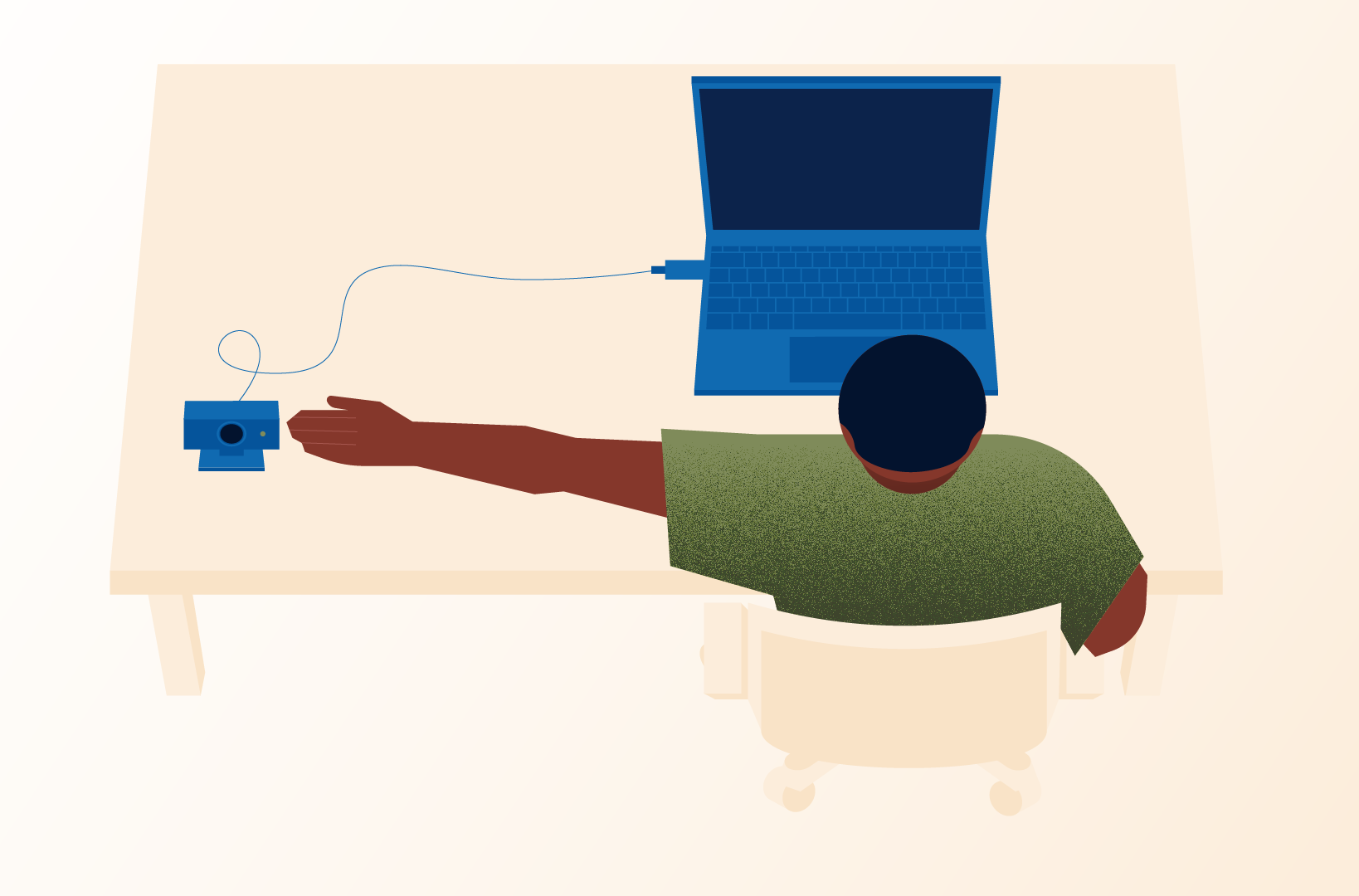
- Extend your arm straight out to the side you plan to place the camera
- Place your camera where your fingertips reach
Camera View Requirements
The camera should be positioned on either your left or right side and should clearly capture:
- The profile of your face (side view)
- Your desk or work space
- Your computer screen.
This may require placing the camera on a surface that is not your desk, such as an end table.
Step 4
Start Your Exam