
Honorlock: ExamSoft Student Guide
On this page:
In this class, you will take your ExamSoft/Examplify exams remotely using Honorlock. You DO NOT need to create an account with Honorlock nor schedule an appointment. However, you will need to set up your ExamSoft account prior to taking the exam via Honorlock.
As a reminder, you must meet the minimum System Requirements to successfully use the tool. Lastly, it is a requirement that you present a valid physical form of ID. (e.g. CatCard, driver's license, passport, or any government issued ID). You can review Honorlock’s Privacy Statement for more information on how your data is protected.
Students are responsible for meeting Honorlock's Standard Guidelines on testing area and testing behavior.
Set Up ExamSoft
You must set up your ExamSoft account an download Examplify before you launch Honorlock.
Step 1
Follow the instructions given to you by your instructor or College on logging into ExamSoft.
Step 2
Follow the instructions on installing and registering Examplify on the device you will be using to test.
Note
Even though Examplify can be used on iPads, Honorlock cannot. Please ensure to install Examplify on a device that is compatible with Honorlock.

Access Honorlock
All users must access Honorlock from the link in the Brightspace course. The Honorlock link is usually found under UA Tools in the course's Navbar.
Step 1
From the course's Navbar, select UA Tools then select Honorlock.

Download Chrome Extension
Before being allowed to access Honorlock, you must download the Honorlock Chrome Extension.
Note
It is recommended that you remove the Honorlock extension after every exam.
Step 1
Select the box to agree to the Terms of Service and select Get Started.

Step 2
The chrome web store will open, select Add to Chrome.

Begin Authentication
Before accessing any exam, you must complete the authentication process. The Honorlock dashboard will display only those exams that require the tool. The launch button may be activated for multiple exams, regardless of their respective exam windows. Although you may not access all exams listed, you can initiate the authentication process for any exam with an enabled launch button. Therefore, please only launch the exam you intend to take.
Step 1
Select Launch for the exam you intend to take.
Step 2
Read and agree to the Data Collection & Use policy (opens in a new tab) and Honorlock's Terms of Serivce (opens in a new tab).

Step 3
Review Your Exam Guidelines, select Run System Check if necessary, when ready select Launch Proctoring.
Step 4
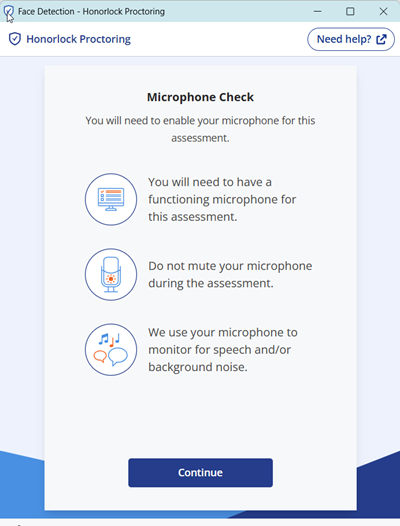
Read the information on the microphone requirements during the exam. When you're ready, select Continue.
Step 4a
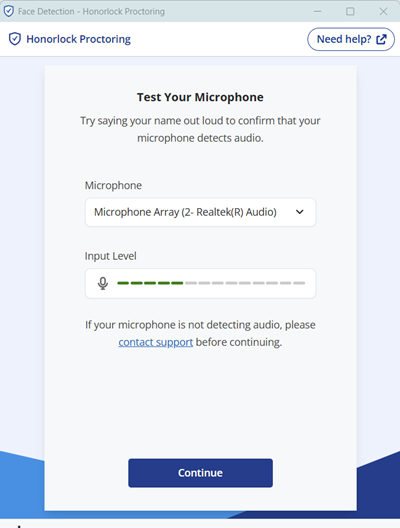
Say your name out loud to confirm your microphone works. If you do not see the input level bar change when you speak, check your microphone before continuing.
Step 5
Read Honorlock's Privacy Details, when ready select I understand.

Step 6
You will be prompted to take a photo of yourself. Center your face on your webcam and select Take Photo.

Note
If you have not used Honorlock previously, you will be required to allow Honorlock access to your camera and microphone in order to proceed.
Step 7
Read the ID Verification Instructions. When ready select Continue.

Step 7a
Next, verify your ID. Hold your photo ID to the frame and select Take ID Photo.

Note
A physical form of ID is required to proceed. A CatCard or government issued ID is sufficient. If you are unable to present a physical ID, contact your instructor.
Step 8
Read the steps you'll need to follow to share your screen, when ready select Continue.

Step 8a
To share your screen, select your screen and the select Share.

Begin Exam
Step 1
Authentication is now complete, select Focus Test Window to return to your exam.

Step 2
Prior to beginning your exam, take a moment to review your on-screen camera view and make any adjustments as needed. Confirm that you are centrally positioned and comfortable with all the elements visible on your screen. When you are ready, select Start Exam.

Access Examplify
The Brightspace Quiz you just began is an access point for your Examplify exam. Follow the instructions given by your instructor in the Brightspace Quiz to access your actual exam.
Note
It's very important that you DO NOT close or submit the Brightspace Quiz until you have completed, uploaded and submitted your Examplify exam. Closing the Brightspace Quiz will end the proctoring session and invalidate your exam.
Remove Chrome Extension
Honorlock frequently updates its extension, so it's advisable to uninstall the Honorlock Chrome Extension. This ensures that the next time you use the tool, you'll download the latest version of the extension.
Step 1
In your Google Chrome browser, copy the link chrome://extensions/.
Step 2
From the list of extensions, find Honorlock and select Remove.

Honorlock Support
For assistance, email support@honorlock.com or chat directly with support via the Live Chat feature on the Honorlock dashboard.